
Discord Bot
Integrate RankGun with Discord for ranking commands and notifications. Requires Elite subscription.
Elite Subscription Required
The Discord Bot feature requires an Elite subscription. Webhook notifications are available on all tiers.
A custom Discord bot that you own, allowing you to interact with your workspace directly from Discord using slash commands.
Setup
Navigate to Integrations > Discord in your workspace dashboard. Under the Discord Bot section, click Setup Discord Bot to open the setup dialog.
Read carefully
Follow each step carefully to avoid misconfiguration.
1. Create a Discord Application
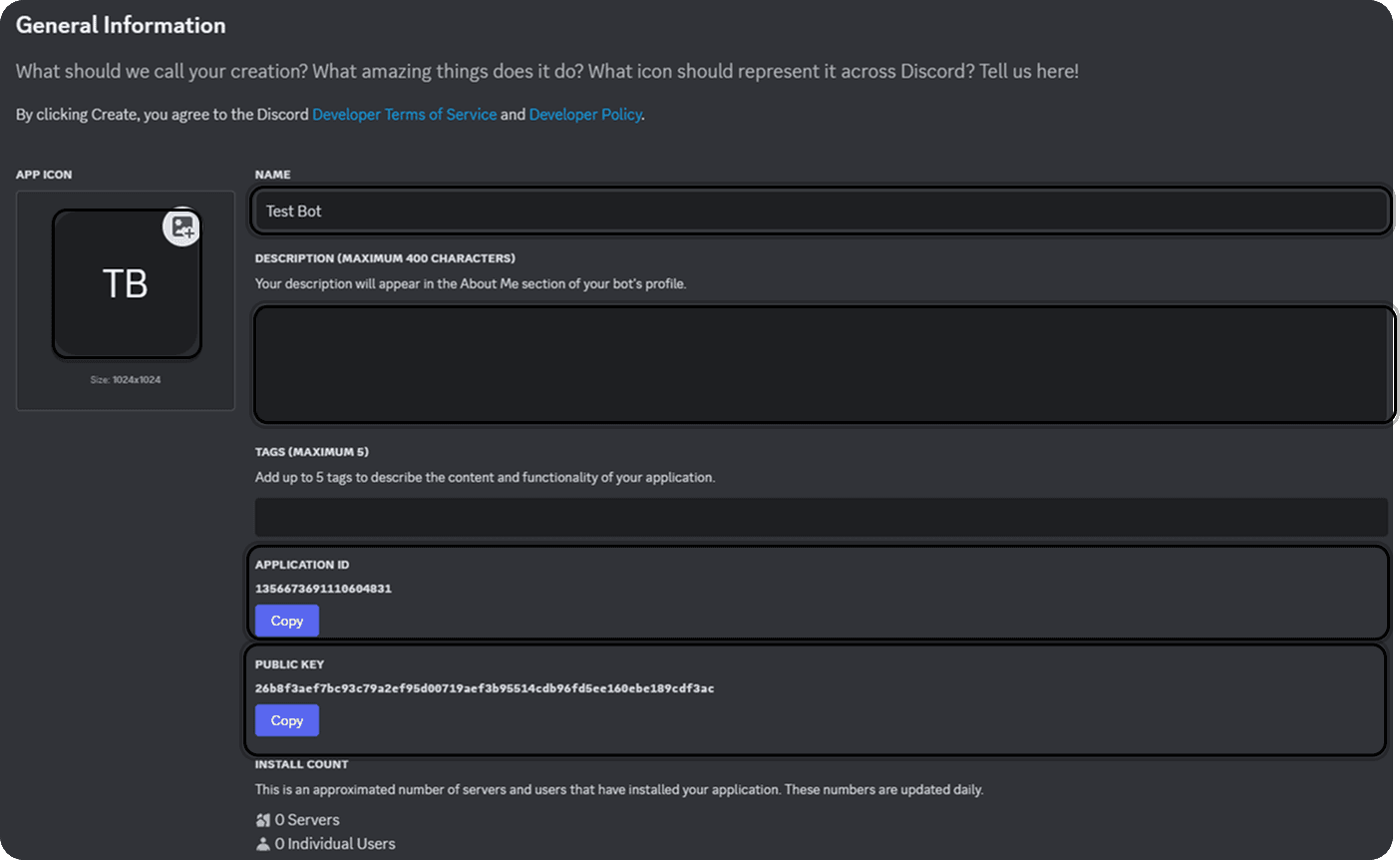
Navigate to the Discord Developer Portal and click New Application. Name your application and give it some branding.
Copy the Application ID and Public Key from the General Information page.
2. Secure Your Bot
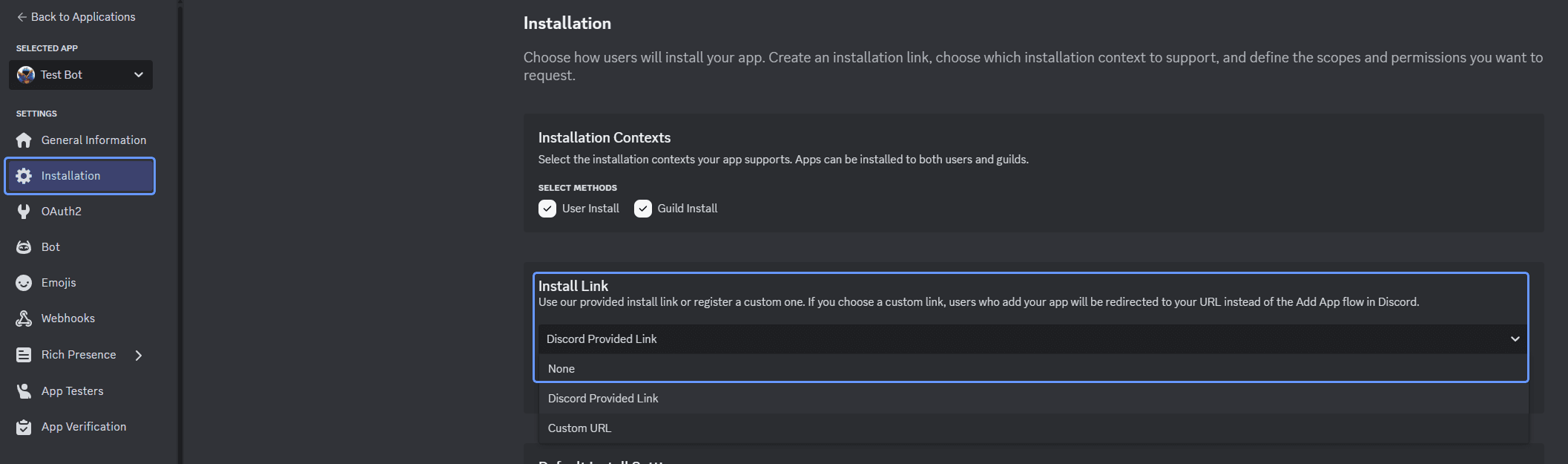
Locate the OAuth2 tab and change the Install Link to None so nobody else can add your bot.
Navigate to the Bot tab and disable the "Public Bot" switch. You may also customize the username, icon, and banner here.
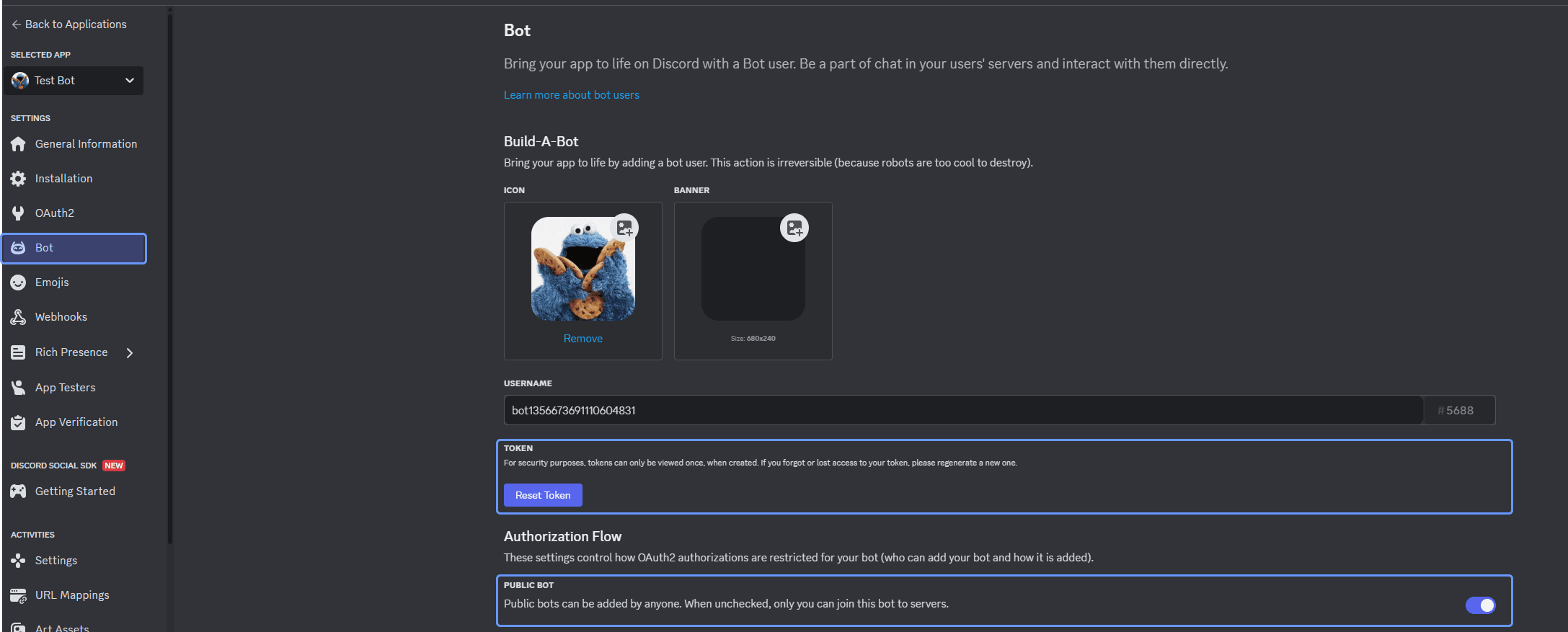
Copy the Bot Token from this page.
3. Connect in RankGun
Back in the RankGun dashboard, click Setup Discord Bot and fill in the three fields:
| Field | Where to find it |
|---|---|
| Application ID | Developer Portal > General Information |
| Public Key | Developer Portal > General Information |
| Bot Token | Developer Portal > Bot |
Click Connect Bot. RankGun will validate your token and automatically register the slash commands globally (available in all servers the bot is added to).
4. Set the Interactions Endpoint URL
After connecting, the dashboard will display your Interactions Endpoint URL. Copy it, then go back to the Discord Developer Portal:
- Open your application's General Information page
- Paste the URL into the Interactions Endpoint URL field
- Click Save Changes
Discord will verify the endpoint before saving. If it fails, double-check the URL is correct and the bot is connected in RankGun.
5. Invite Your Bot
Navigate to OAuth2 > URL Generator in the Developer Portal:
- Under Scopes, select bot
- Under Bot Permissions, select Administrator
- Set the integration type to Guild Install
- Copy the generated URL and open it in your browser
- Select your server and authorize the bot
Slash Commands
Once set up, the following slash commands are available in your Discord server:
| Command | Description |
|---|---|
/promote <username> | Promote a Roblox user to the next rank in your group |
/demote <username> | Demote a Roblox user to the previous rank in your group |
/setrank <username> <rank> | Set a Roblox user to a specific rank ID |
All ranking actions performed via Discord are logged to your workspace audit log.
Informational Commands
The following read-only commands are available to all workspace Discord members without any rank permissions:
| Command | Description |
|---|---|
/info [username] | Look up a member's role, activity stats, streak, and online status. Omit the username to view your own stats. |
/leaderboard | Show the top 5 performers by activity time. |
/schedule | Show upcoming scheduled sessions. |
These commands do not perform any ranking actions and are safe for all members to use.
Managing Your Bot
Disconnecting
To disconnect your bot, go to Integrations > Discord and click the Disconnect button next to the bot status. This deactivates the bot but does not delete your Discord application.
Reconnecting
To reconnect or update credentials, click Setup Discord Bot again and enter your updated credentials.
Webhook Notifications
Webhook notifications are available on all tiers, no Elite subscription required.
Send automated Discord notifications when sessions are scheduled, cancelled, or about to start. Configure two separate webhook channels:
Announcement Webhook
Public-facing notifications for your community. Supports the following triggers:
- Session Created — notifies when a new session is scheduled
- Session Cancelled — notifies when a session is cancelled
- Session Reminder — sends a reminder before a session starts (configurable: 15 min, 30 min, 1 hour, 2 hours, or 1 day)
Staff Webhook
Internal notifications for your staff team:
- Roles Available — notifies when a recurring session instance has roles available to claim
- All Roles Filled — notifies when all required roles for a session have been claimed
Setting Up Webhooks
- In Discord, right-click a channel and select Edit Channel > Integrations > Webhooks
- Click New Webhook, name it, and click Copy Webhook URL
- In the RankGun dashboard, go to Integrations > Discord
- Paste the URL into the Announcement Webhook or Staff Webhook field
- Toggle the notifications you want enabled
- Click Save Settings
Repeat for both webhook channels if needed. Each can point to a different Discord channel.